
Getting Started
Welcome to the Getting Started guide for the iServe Live Partner Portal. This guide will help you get started with the portal and provide you with the information you need to start using the portal effectively.
What is the iServe Live Partner Portal?
The iServe Live Partner Portal is a platform that allows you to create digital presence for your business, manage your online orders, and track your sales and performance. The portal provides you with tools and features to help you grow your business and reach more customers. You can manage your products, customers, orders, payments, and more from a single dashboard. The portal is designed to be easy to use and intuitive, so you can focus on running your business without any hassle.
Download the POS Desktop App
To get started with the iServe Live Partner Portal, you need to download the iServe Live POS Desktop App. The POS app is a desktop application that allows you to manage your products, customers, orders, and more from your computer.
After downloading the app, extract the zip file and run the iServe-POS-Setup-<version> executable file to launch the app. You will be prompted to log in with your email address and password. Once you have logged in, you can start using the app to manage your business.
Sign Up
To get started with the iServe Live Partner Portal, you need to sign up for an account. You can sign up by visiting the Sign Up page and filling out the registration form. Once you have signed up, you will receive an email with a link to activate your account.
Sign In
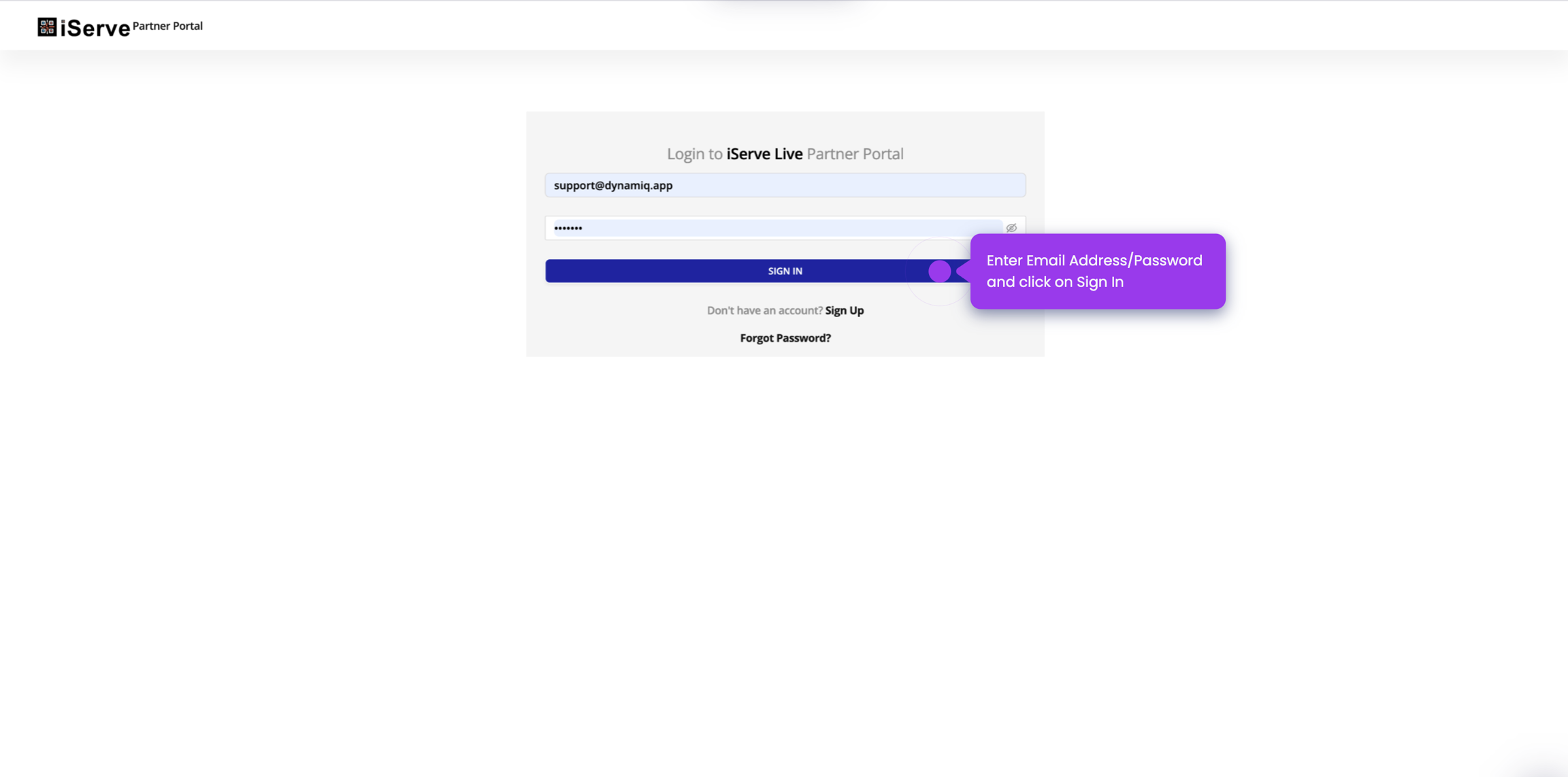
Once you have activated your account, you can log in to the iServe Live Partner Portal by visiting the Log In page and entering your email address and password. After logging in, you will be taken to the dashboard, where you can access all the features of the portal.
Forgot Password
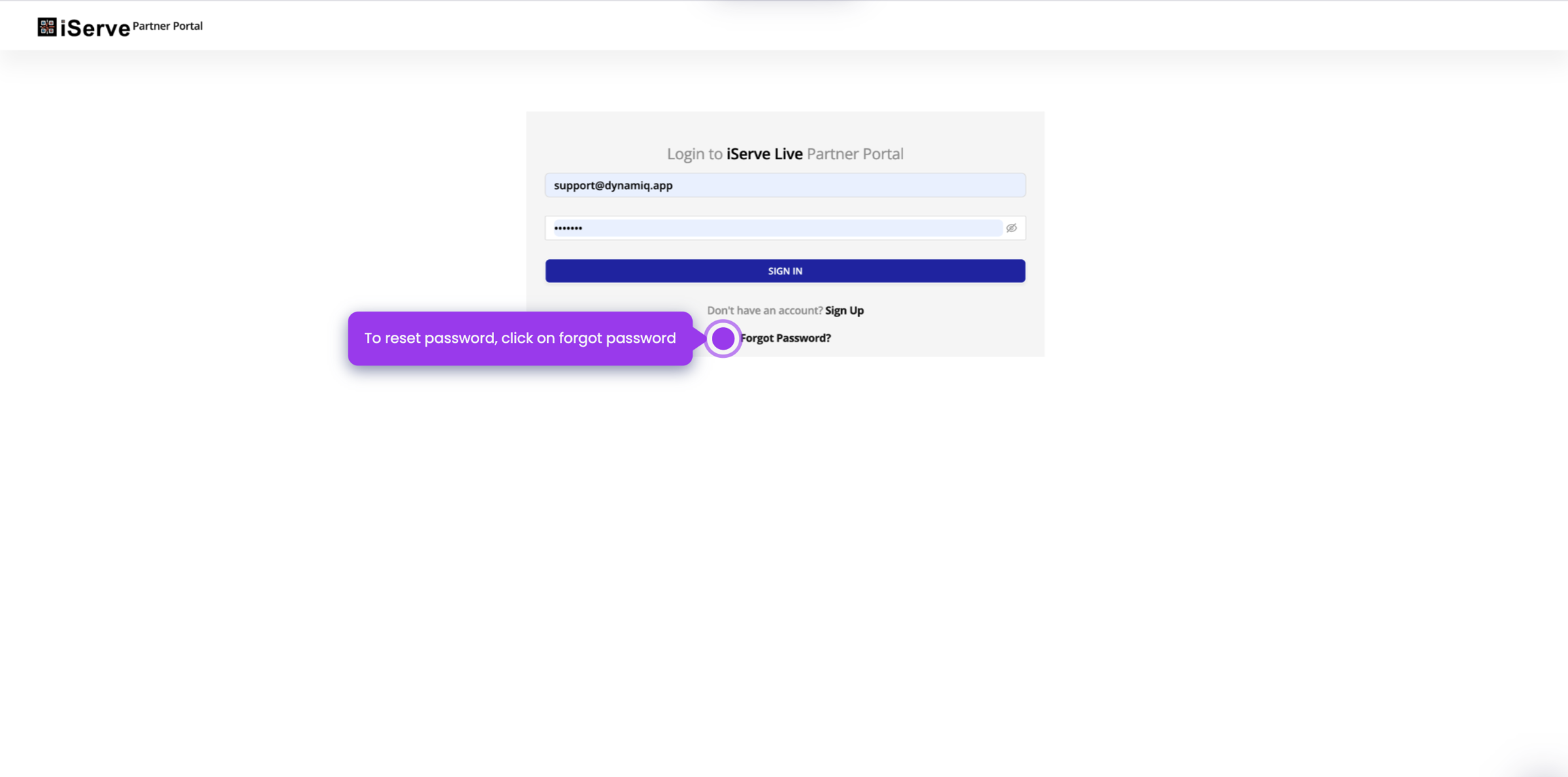
If you forget your password, you can reset it by visiting the Forgot Password page and entering your email address. You will receive an email with a link to reset your password.
Dashboard
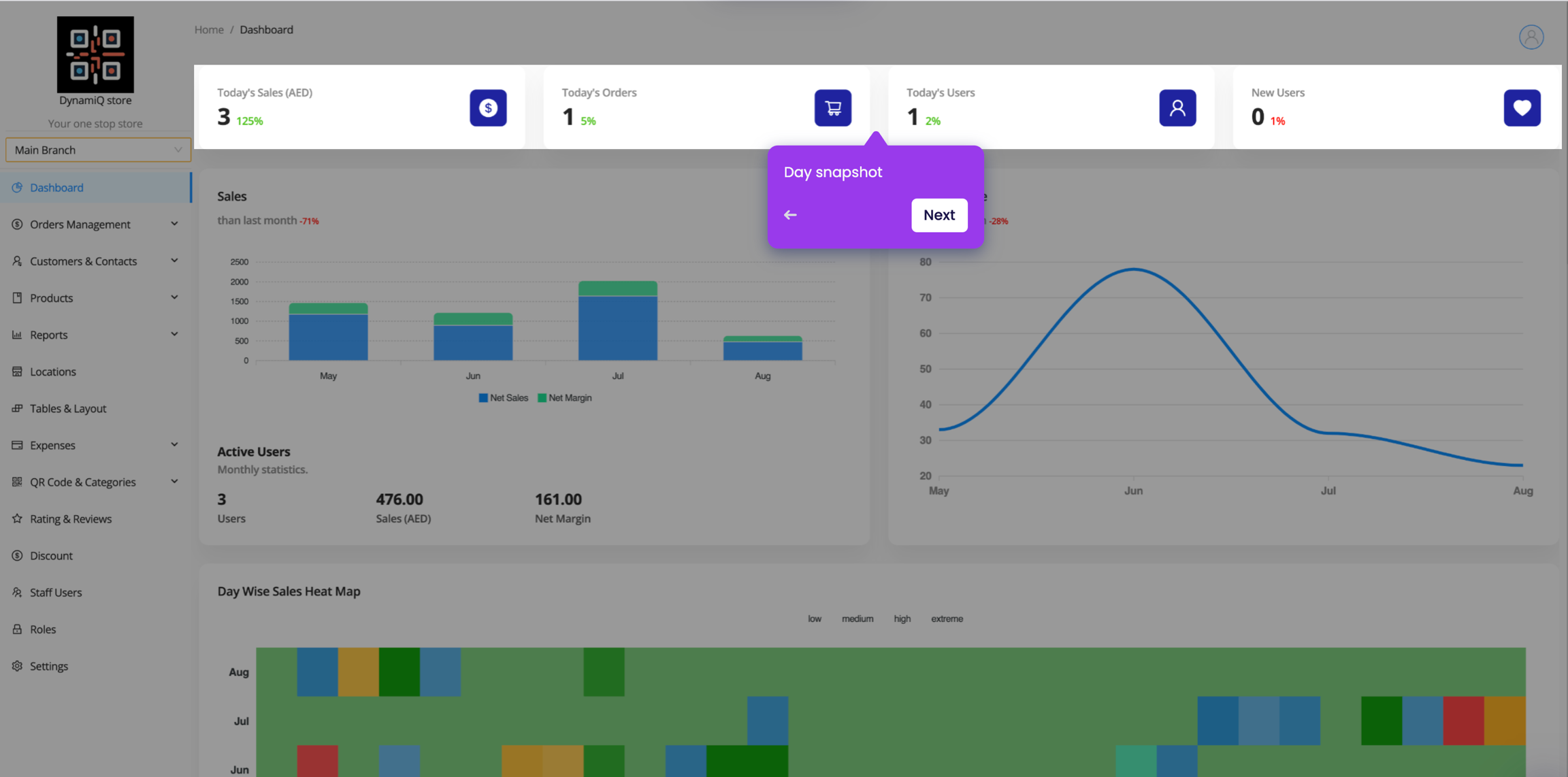
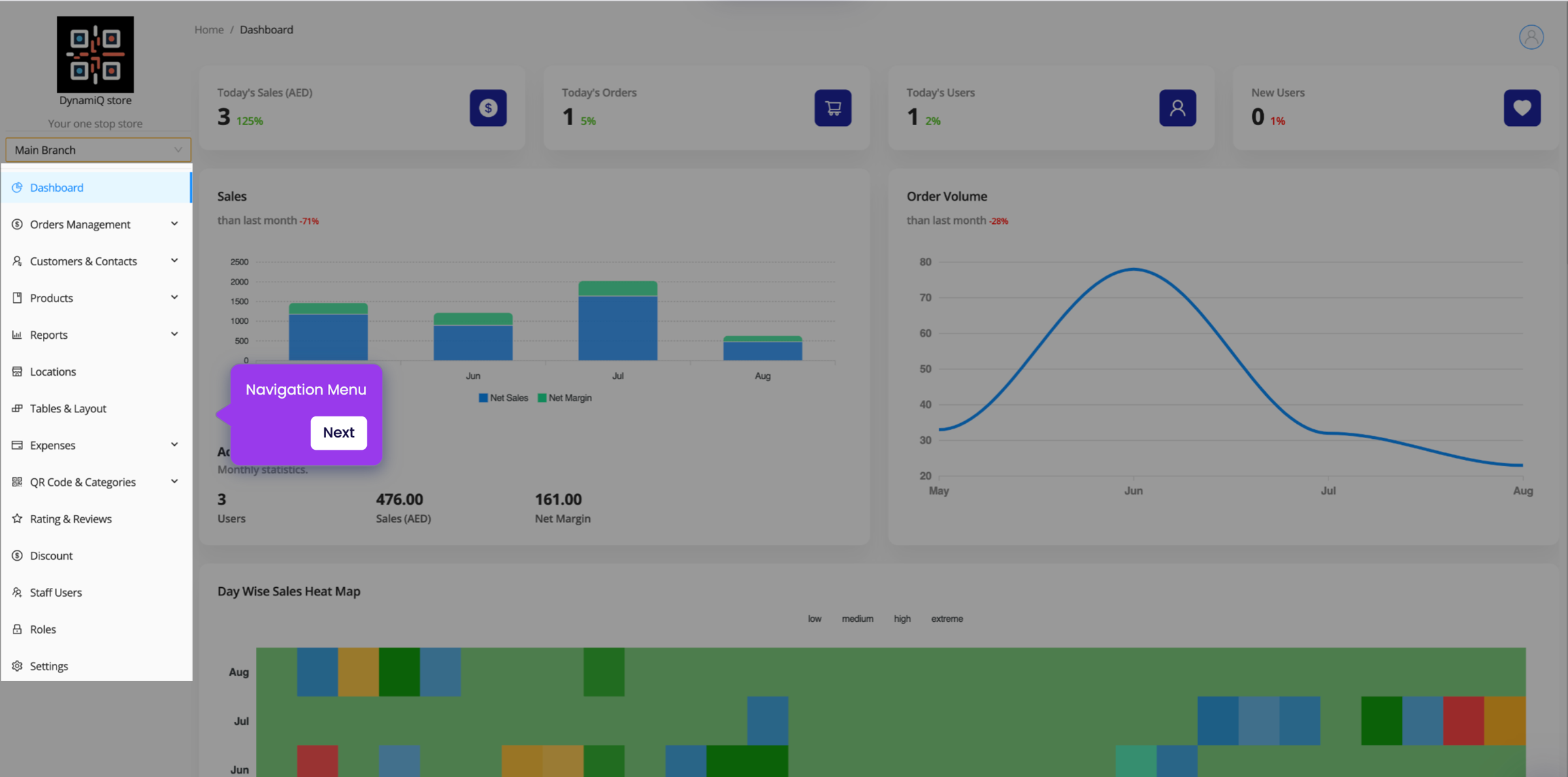
The dashboard is the first page you see when you log in to the iServe Live Partner Portal. It provides an overview of the most important information and statistics.
Change Branch
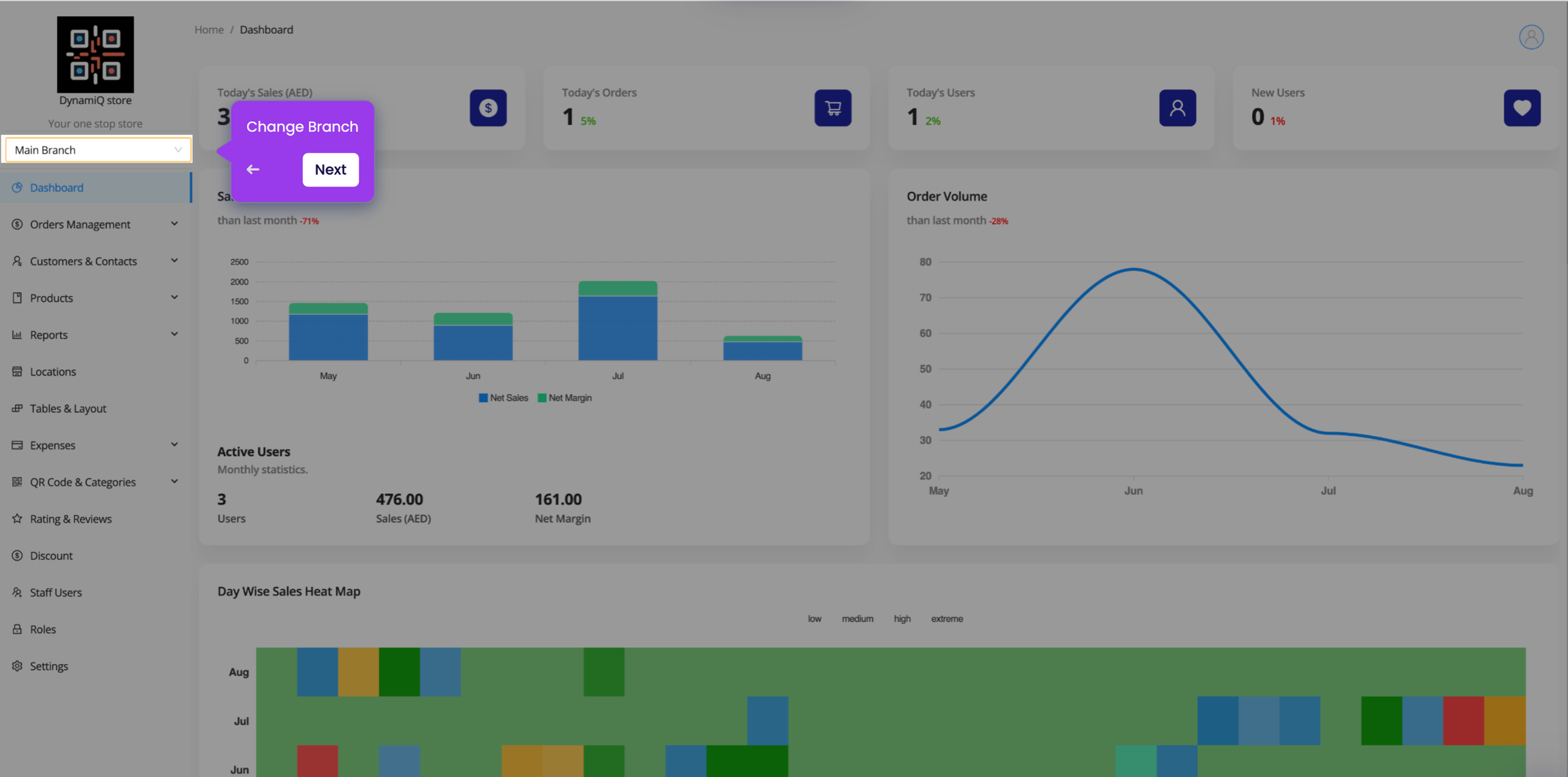
If you have multiple branches, you can switch between them by clicking on the branch name in the top right corner of the screen and selecting the branch you want to switch to.
Navigation Menu
The navigation menu on the left side of the screen allows you to access all the features of the iServe Live Partner Portal. You can click on the menu items to navigate to different sections of the portal.
Last updated