Point Of Sale

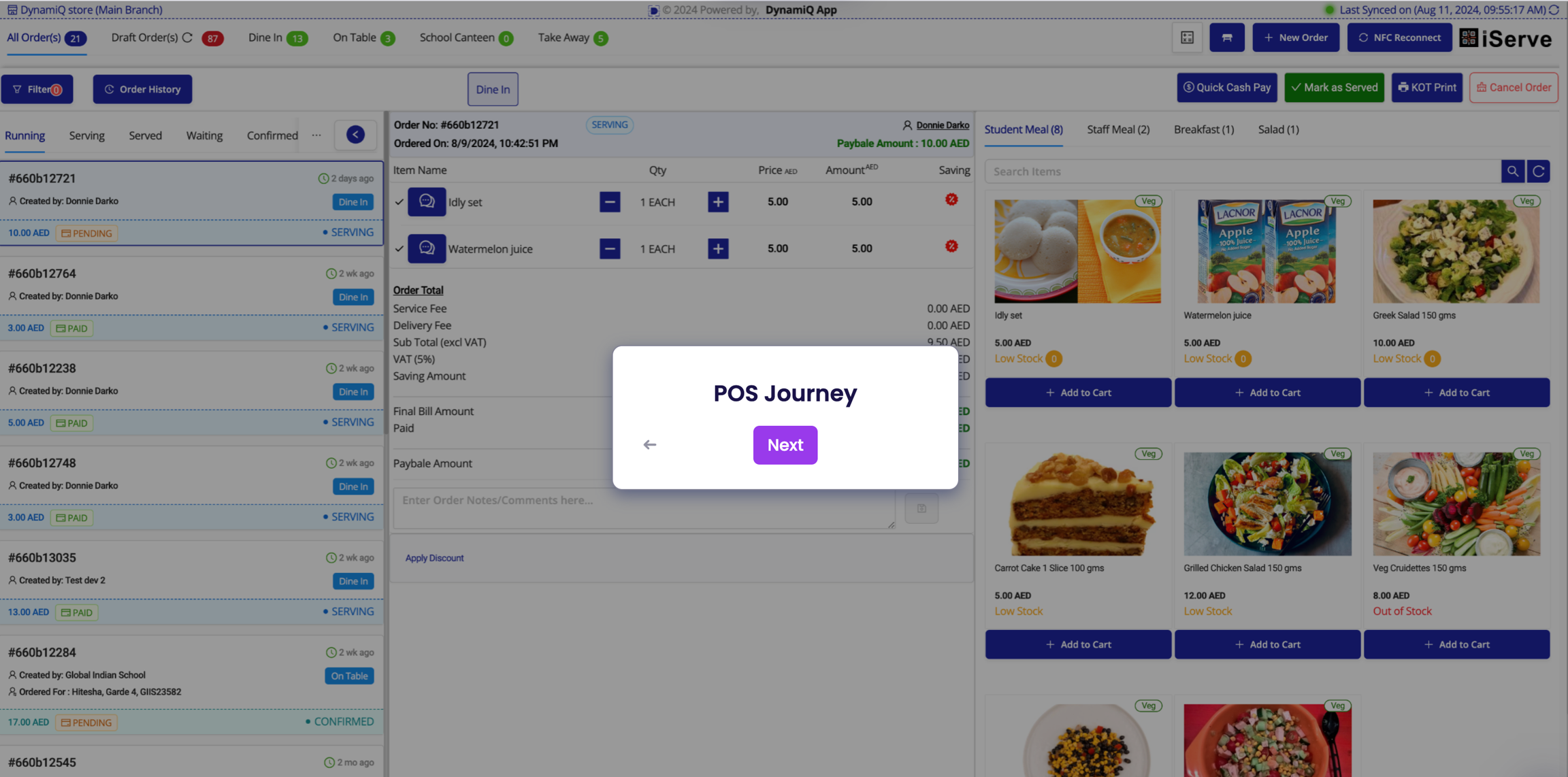
POS Journey
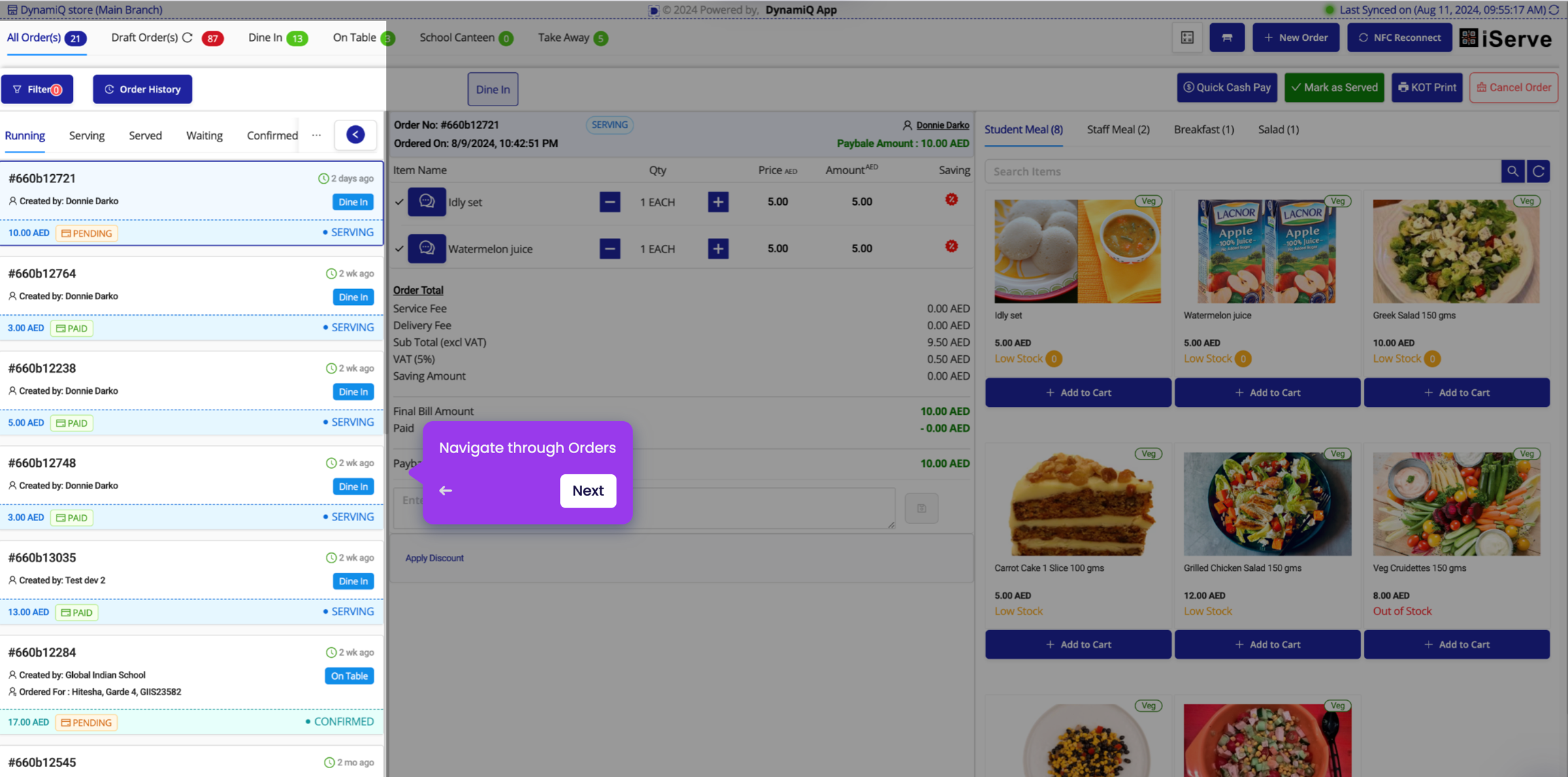
Navigate through Orders

Check Order Details
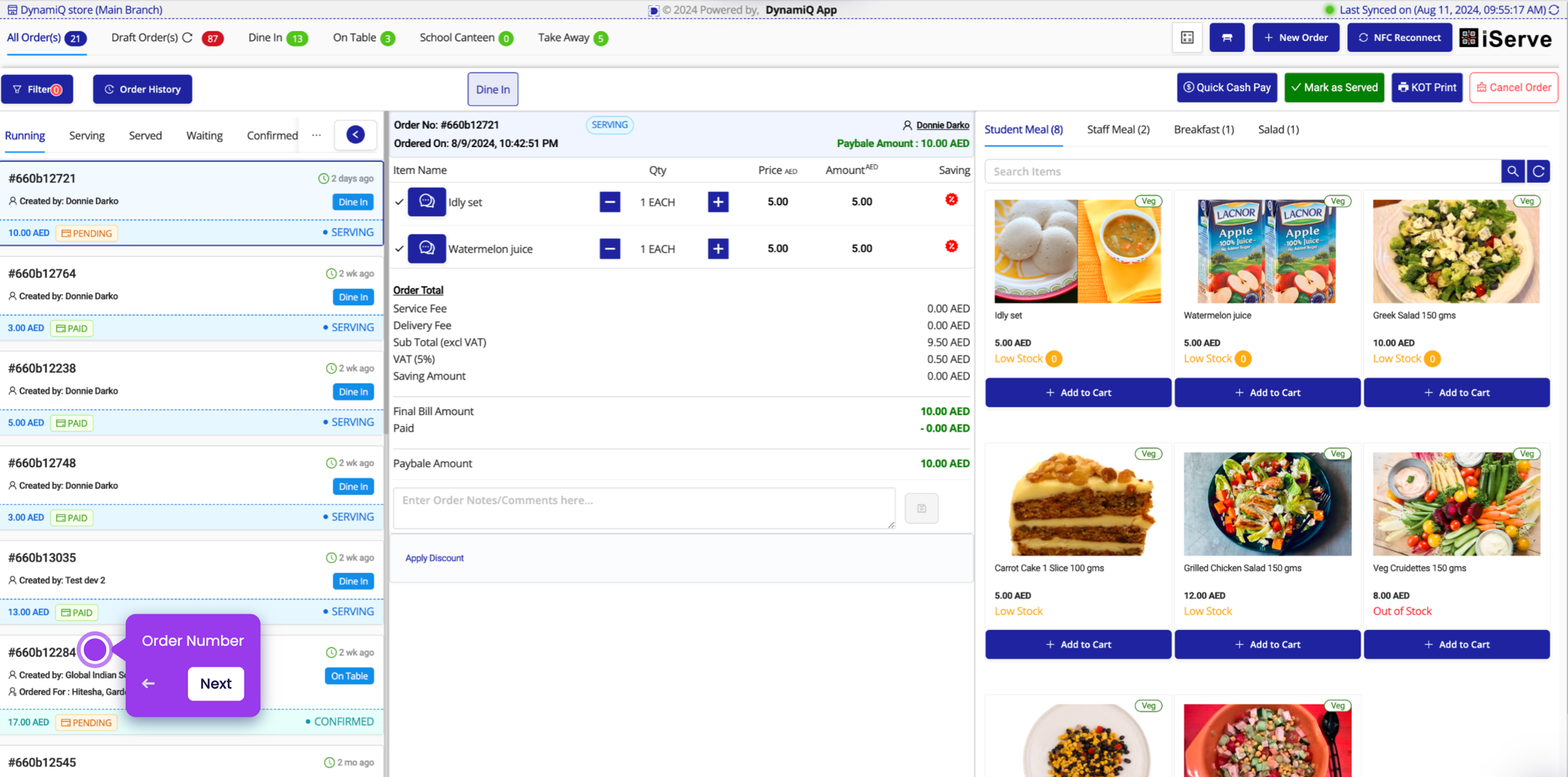
Check Order Details

Check Customer Details
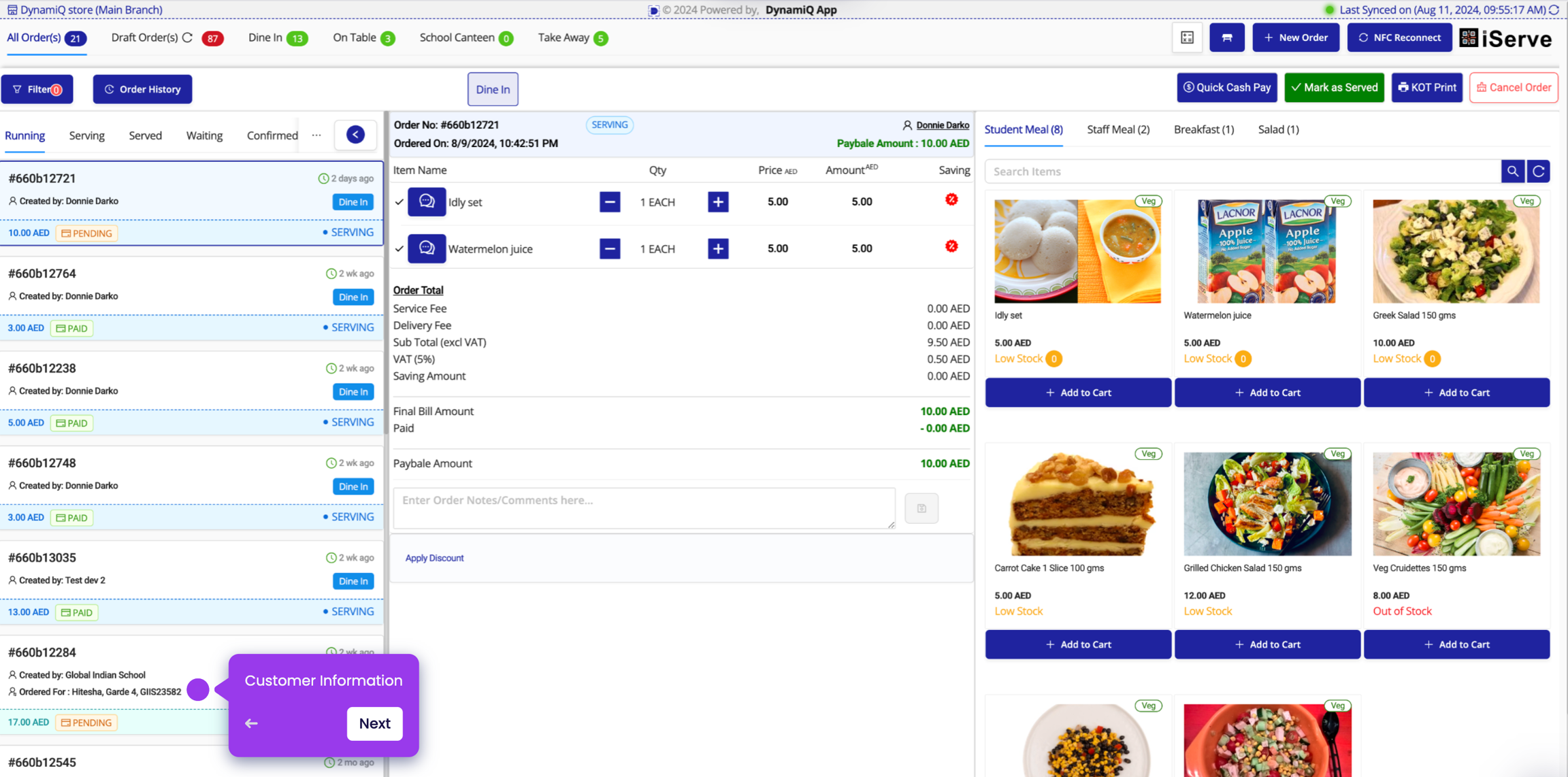
Check Customer Details

Check Payment Status
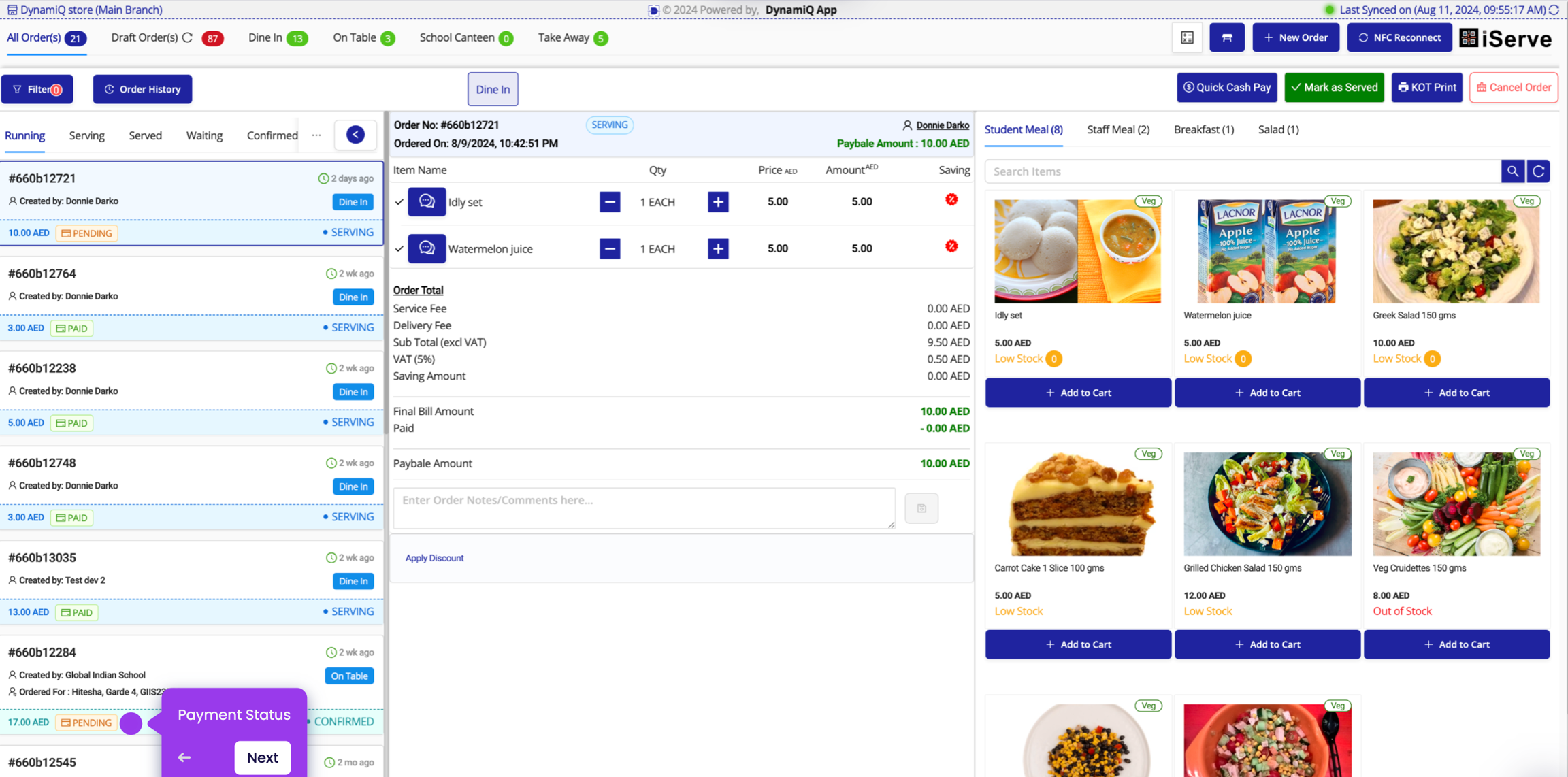
Check Payment Status

Check Order Status
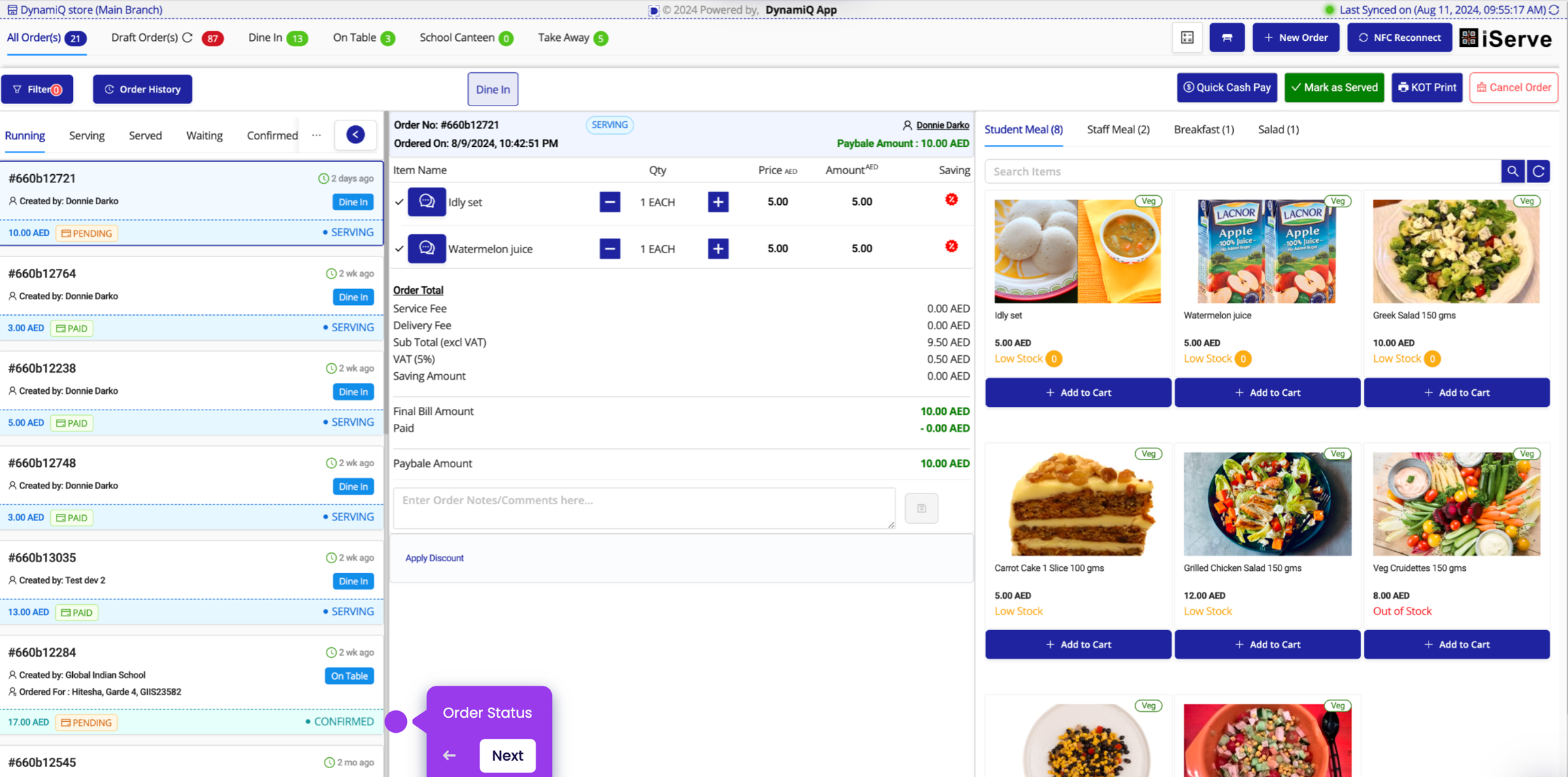
Check Order Status

Create New Order
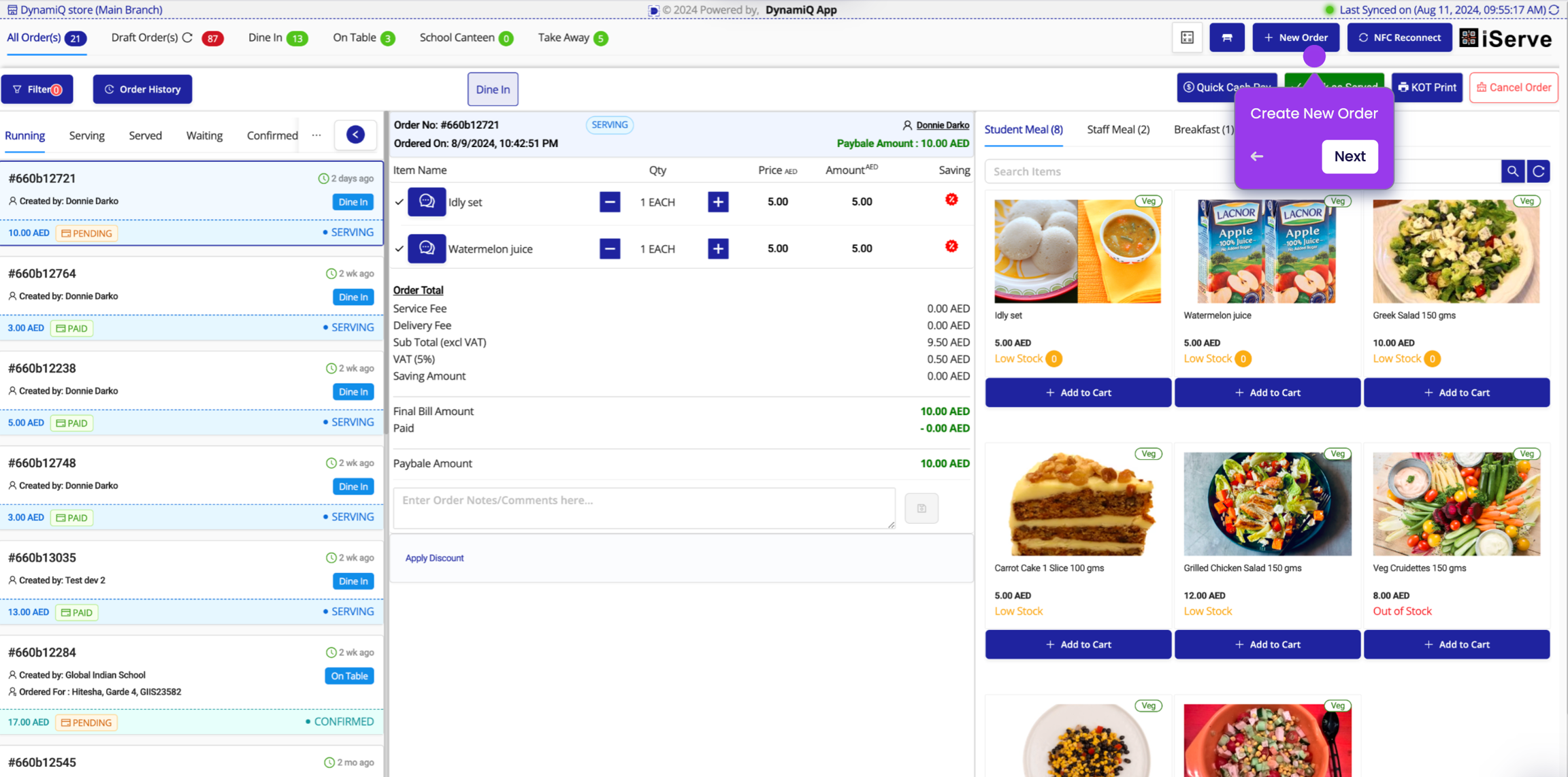
Create New Order

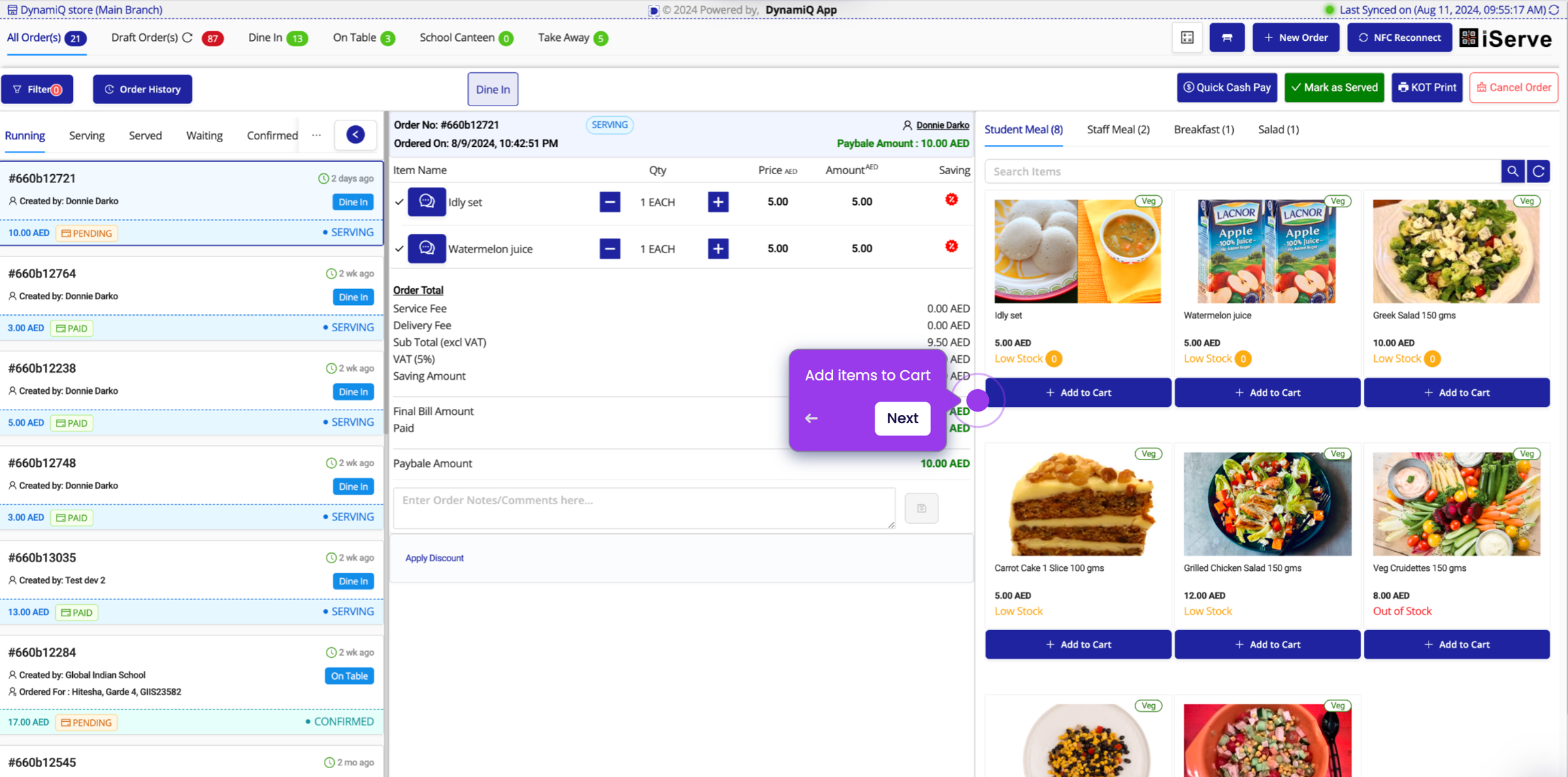
Add to Cart

Add to Cart

Check Stock Availability
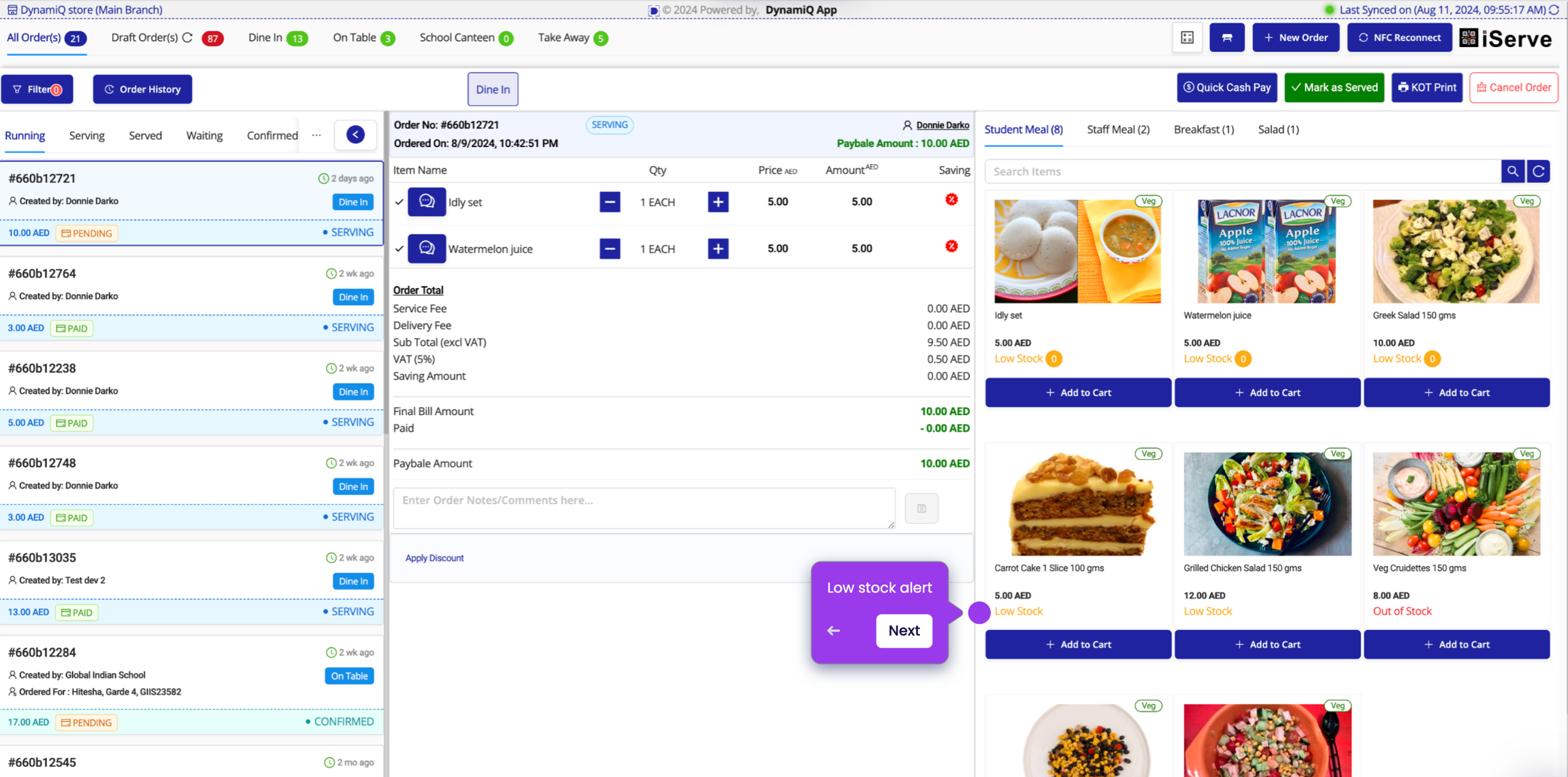
Check Stock Availability

Apply Discounts
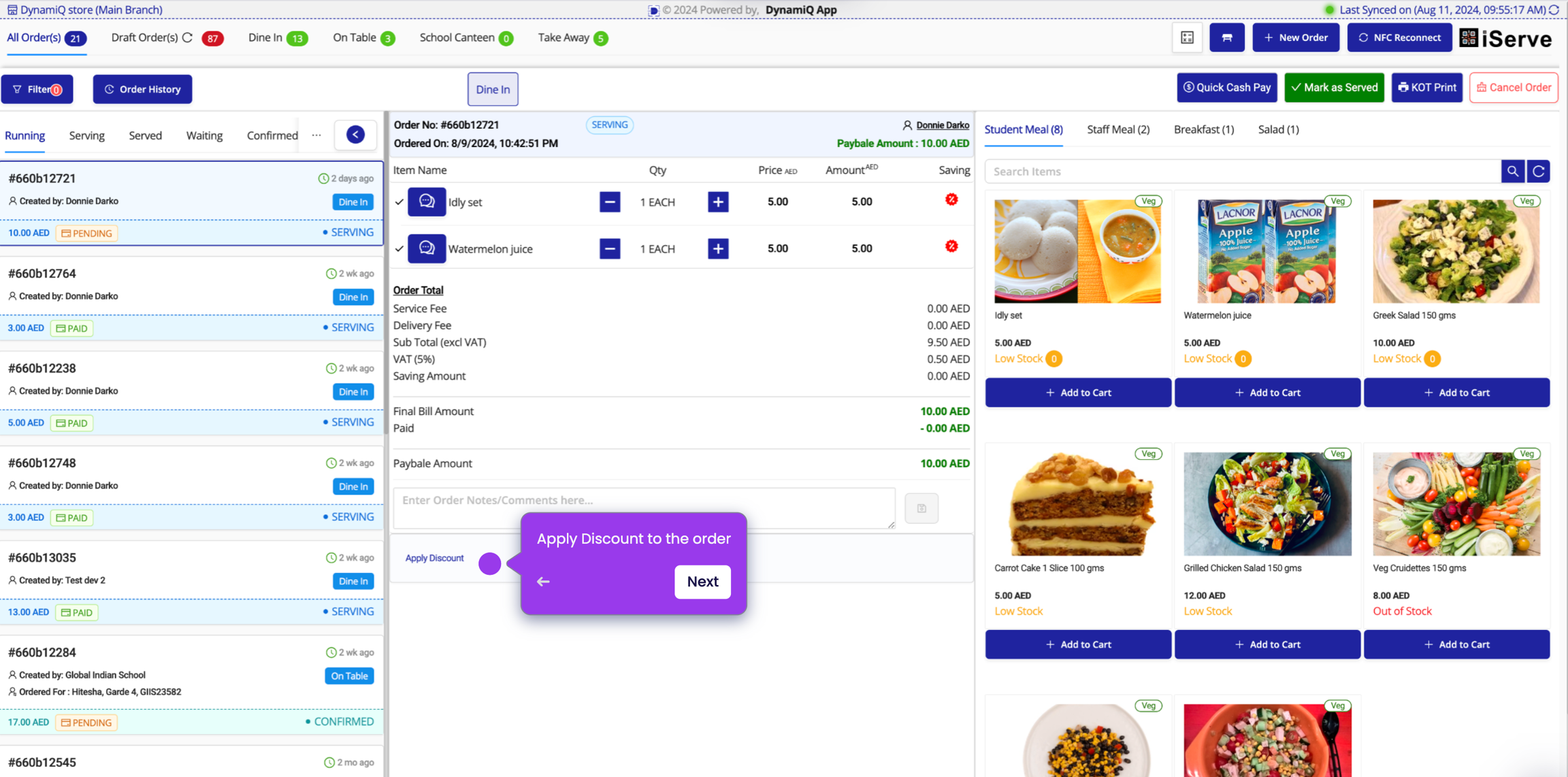
Apply Discounts

Select Discount Code
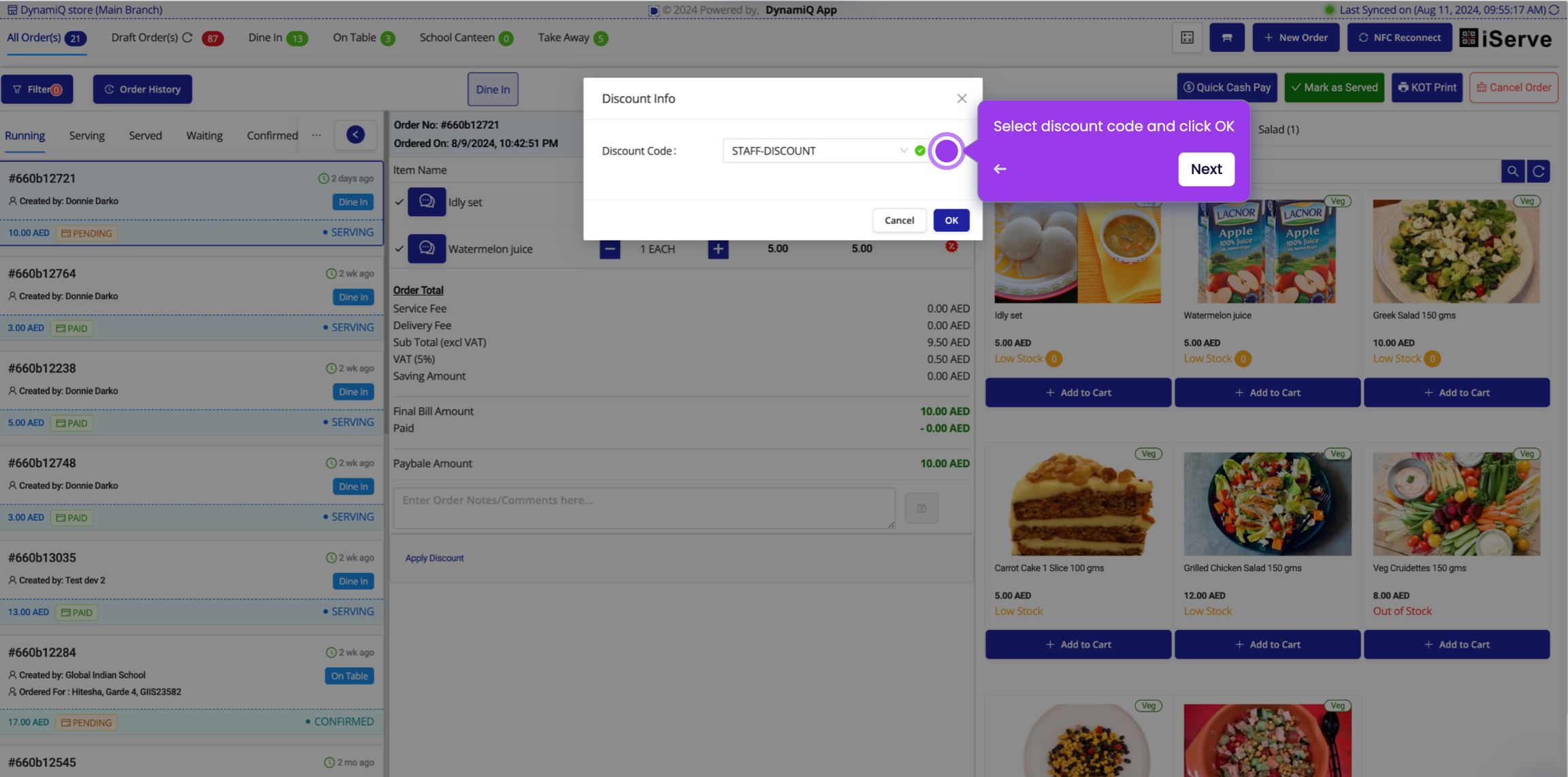
Select Discount Code

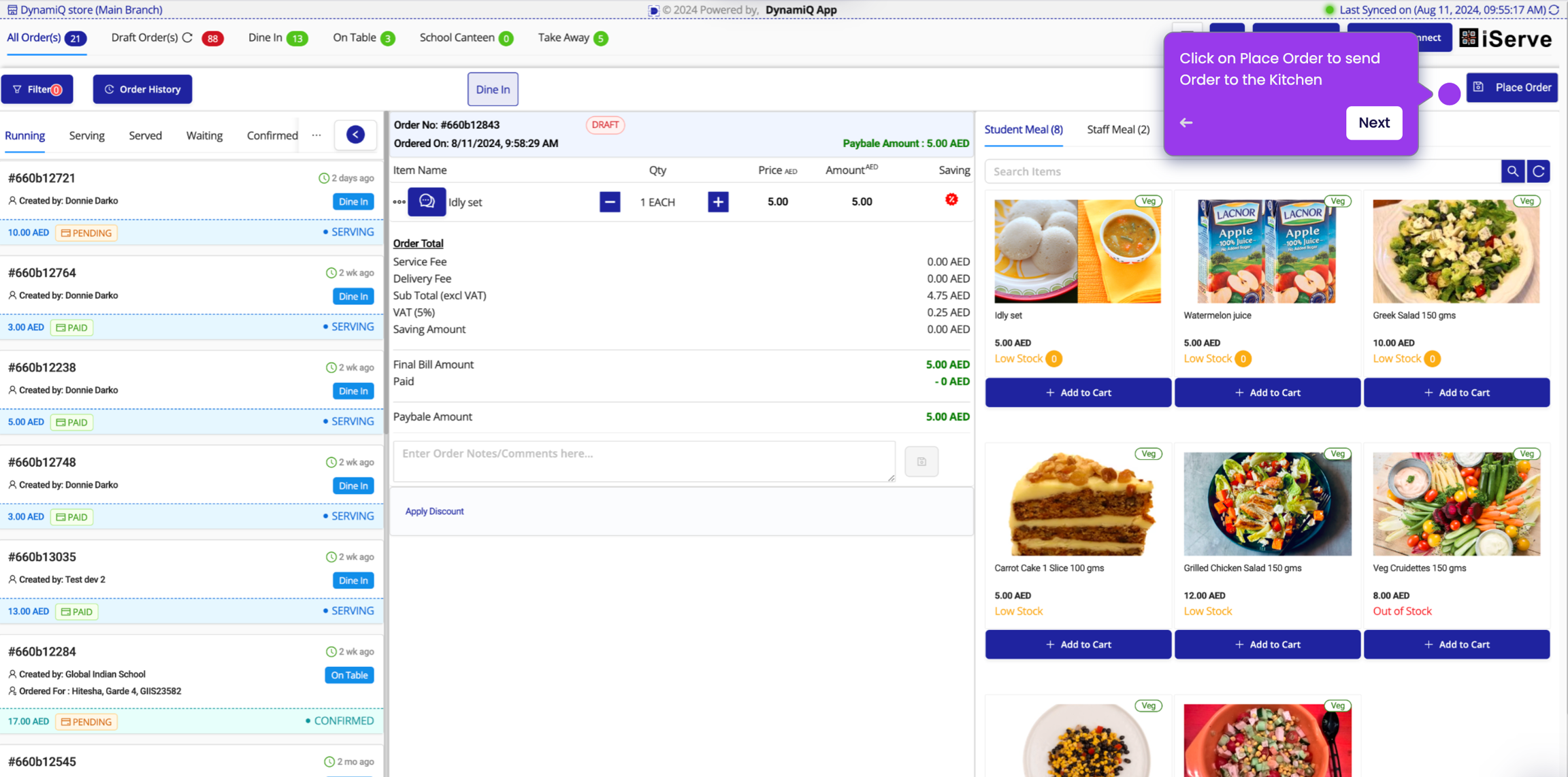
Place Order

Place Order

Accepting/Rejecting Orders received from Customer App

When an order is placed from the Online Order App, it will be displayed on the POS screen. The POS operator can accept or reject the order.

Accept or Reject the Order

Quick Cash Payment

Collect cash from customer and click on Quick Cash Pay for fulfilling order with Cash payment.

Quick Pay

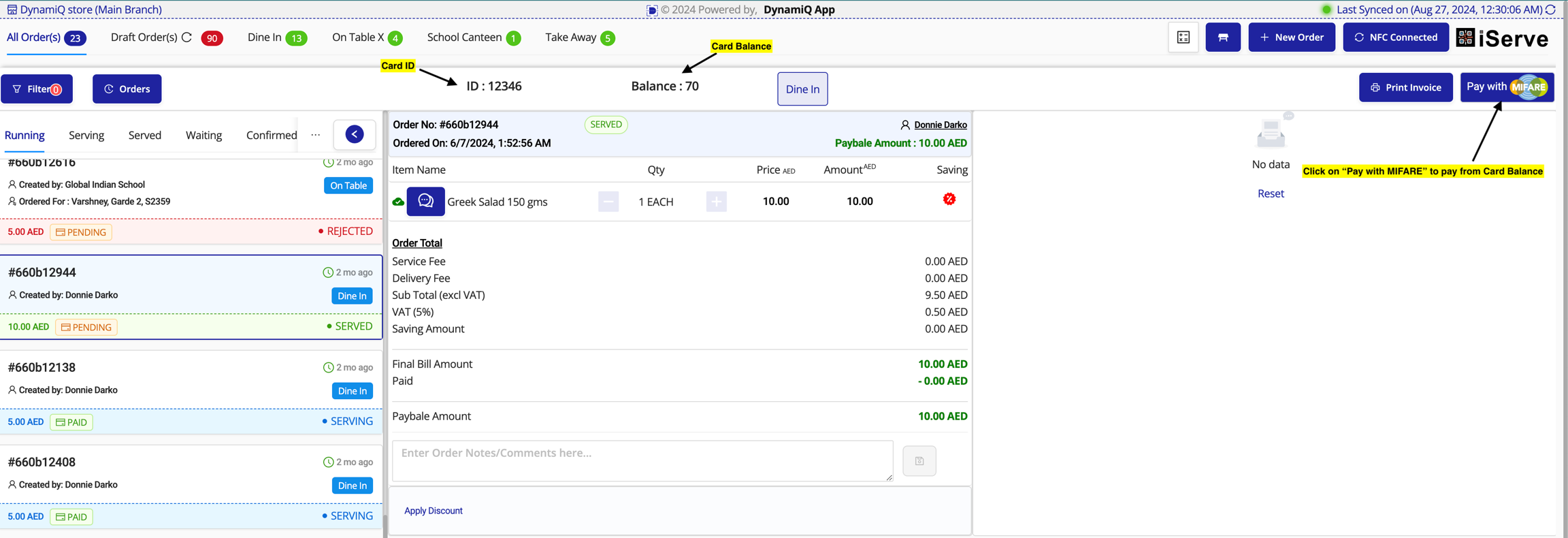
Quick Pay with MIFARE

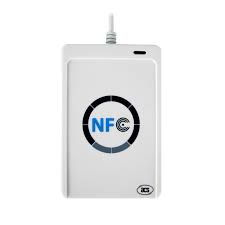
Check if NFC is connected and then place the contactless card on the NFC reader.

NFC Reader

If NFC is not connected, click on NFC Reconnect button after connecting the reader to machine.

NFC Reconnect

"Pay with MIFARE" button will automatically show on top right corner of POS.

Quick Pay with MIFARE

Click on the Print Receipt button to print the receipt.

Last updated